Pages

Tuesday, September 17, 2013

How to Backup and Restore EFS Data / IMEI on Samsung Galaxy Devices – Did You Do It?

I am not sure how many of you visiting this page are familiar with the presence and importance of the EFS thing that we are going to talk about today! Actually, I often hear people requesting to offer a solution of a problem that makes them unable to make a call, send a message, access internet or any connectivity related thing. Imagine a mobile phone without a network connection at all and you’ll then realize how horrible it is!
So, if EFS is so important a thing, it must be preserved so that you might be able to use all connectivity features of your device. This thing is found in all mobile devices which have an IMEI (International Mobile Equipment Identity) number assigned to it but the location and directory where it is stored might differ. On Samsung Galaxy devices, the IMEI and other connectivity data are stored in this particular folder that I have been mentioned several times so far.

What is EFS?

Having read about the role of EFS on your Samsung Galaxy phone or tablet device, you must be a little more curious to know something more about it. EFS is a system directory that contains device specific essential information such as its IMEI, wireless device MAC address, baseband version, product code, system ID and NV data.
In case the EFS directory is corrupted or lost, your phone or tablet is sure to lose its IMEI number and wireless and network connectivity. You might ask how and why does the EFS data on your device might be lost or get corrupted? The answer is pretty simple and the reason might be a daring activity on your part. Sometimes flashing a custom Kernel (as reported by some users) and in most cases installing a custom ROM is responsible of the EFS data loss.
In this way, the EFS or IMEI loss is deeply related with what you do after rooting your Samsung Galaxy device. Keeping this thing in mind most of our ROM developers insert a script that automatically creates a backup of the EFS data on the external SD Card so that you might restore it back in case of loss or corruption. But it is certainly not wise to rely blindly on the wisdom of others. That is why, whenever we write installation tutorials for custom ROMs for Galaxy device, we warn users to backup EFS before indulging in any custom development activity.
Sadly, most people come to know about the thing called “EFS” only when it is too late. Once lost without being backed up, recovering it becomes very much like a wild goose chase. You might have heard or faced personally the issue when your device shows inability to mount EFS:
E: failed to mount / efs (invalid argument)
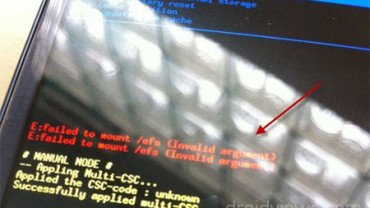
failed-to-mount-efs
If you get this message on your phone’s screen, believe me you have got into a serious problem. Of course, there are ways to restore EFS data, but they are either not available for all devices online or they do not work at all.
It has been well said that “prevention is better than cure” and this saying hold quite true in this case too. Therefore, the first thing that one must do just after rooting and installing a custom recovery one’s device is to backup the EFS and the stock rooted firmware. For more enlightening tips, do not forget to read the following article:

IMEI Backup & Restore for Unrooted Devices

Read the guide here:
Backup and Restore Lost IMEI on Samsung Galaxy Devices without Root

How to Backup EFS on Galaxy Devices:

As the very title of this article says, we are going to tell about a very easy solution to backup the EFS on your Samsung Galaxy device. It is a simple but wonderful tool developed by XDA member LiquidPerfection that makes this job a plaything that can be done by anybody. The tool is called EFS Professional and it supports most Galaxy range of Android devices from Samsung.
The latest version of the software also supports Samsung Galaxy S4 International (GT-I9500), Galaxy S4 LTE (GT-I9505), AT&T S4 (SGH-I747), Verizon Galaxy S4 (SCH-I545) and others. I have also tested it on Galaxy S3, S2, Note 2 and Note 10.1. Besides, EFS Professional works with other Galaxy phones and tablets too.

Features of  EFS Professional:

  • Backup and restore partition images to and from in .tar.gz format
  • Detects backup archives automatically on the device and PC for hassle free restoring
  • Device filter support to allow displaying important partitions for various devices
  • Extract and read device’s PIT file to ensure efficient and accurate backup and restore operations
  • Check MD5 hash to verify integrity of data written
  • Format EFS to wipe all data and recreate partition
  • Samsung’s Qualcomm devices support
  • Option to display various device, ROM and BusyBox related information at the click of a button
  • Restore NV data from internal ‘*.bak’ files if they exist to fix corrupt or incorrect IMEI number
  • Repair NV data file ownership to fix ‘Unknown baseband’ and ‘No signal’ issues
  • NV Backup and NV Restore options for US device variants only

Requirements:

Before you can backup your device’s EFS data safely to your device and PC both, here are a few things that must be taken care of:
  • A Samsung Galaxy Device with root access (custom recovery not needed). If you have not yet rooted your device, you can do it using our easy rooting tutorials.
  • The EFS Professional tool: EFS_Professional_2.0.68_Release.zip
  • Microsoft .NET Framework installed on your computer: dotNetFx40_Full_setup.exe
  • Samsung USB Drivers or Kies installed on your PC: Download
  • Install BusyBox app stable version 1.20.2 on your phone. Install the app on your phone open it. Tap on “BusyBox” version number and select BusyBox 1.20.2. Finally, then tap on “Install” and install it as “Smart Install”.
  • Charge your device to ensure 60% battery level.
  • Turn on USB Debugging mode on your phone or tablet from “Developer Options” on your device: Read this Guide

Using EFS Professional to Backup EFS:

So, do you think you are ready for action now? Make sure you have made all preparations detailed above. If yes, let’s get started now.
  1. Extract the “EFS_Professional.zip” on your desktop.
  2. Connect your Galaxy device to PC using an USB cable. Make sure USB Debugging is enabled.
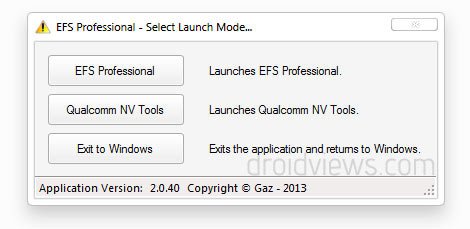
  3. Run EFS Professional.exe file as administrator. Doing this will prompt a popup window like shown below:EFS Professional
  4. Click on “EFS Professional”.
  5. You will now see a new window. Once the device is detected, the lower part of the window will show the device status and info such as model number, firmware version, root and BusyBox version, etc.
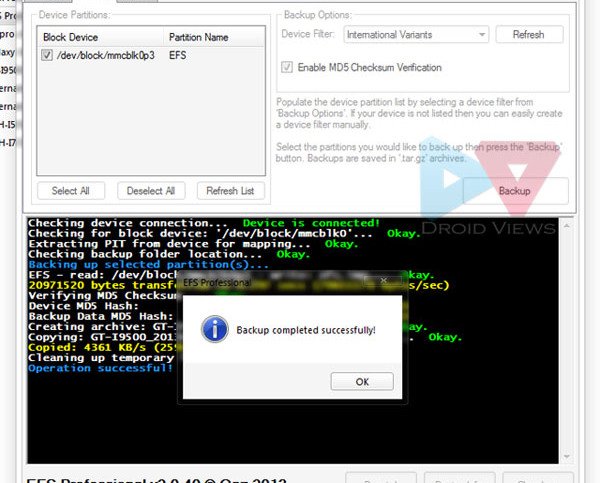
  6. Click on “Backup” tab and then click on “Device Filter” dropdown and select your phone model. If you do not see it listed, click on “Refresh” button and then select it.
  7. EFS Professional will now show the system partition where the EFS data of your device is located. Check the “Select All” box.backup-efs-on-samsung-galaxy
  8. Finally, click on “Backup” and your EFS data will be backed up to your phone and the PC both. The backup on PC can be found in the EFS Professional folder inside “EFSProBackup” and it looks like this: “GT-I9500_2013618_222210.tar.gz”
How to Restore EFS/IMEI:

Having backed up your EFS data, you might take a calm breath and feel a sense of security but it is also important to be familiar with the method how you can restore it back to your Samsung Galaxy device in case you lose it.
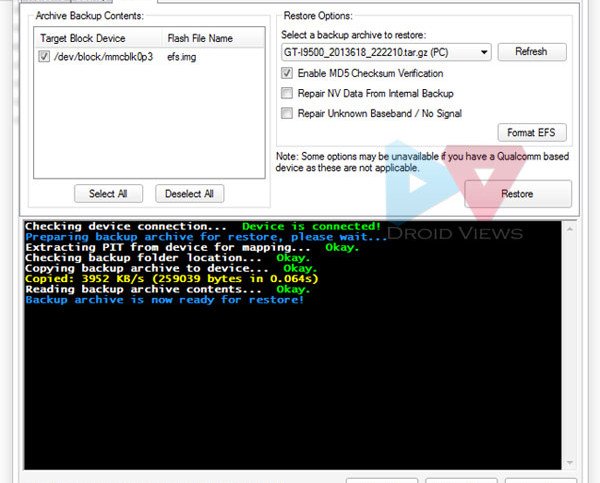
  1. Connect your device to PC
  2. Launch EFS Professional and click on “Restore” tab.
  3. Now click on the drop down menu in “Restore options” part of the window and select the previously backed up file.restore-efs-on-samsung-galaxy
  4. You can also format the currently corrupted EFS directly.
  5. Now click on “Restore” button.
Your Samsung Galaxy device’s EFS/IMEI should now be restored back to its original location. Dia *#06# on your phone’s keypad to check it it has IMEI number or not.

Backup EFS Data on Galaxy Devices Using kTool:

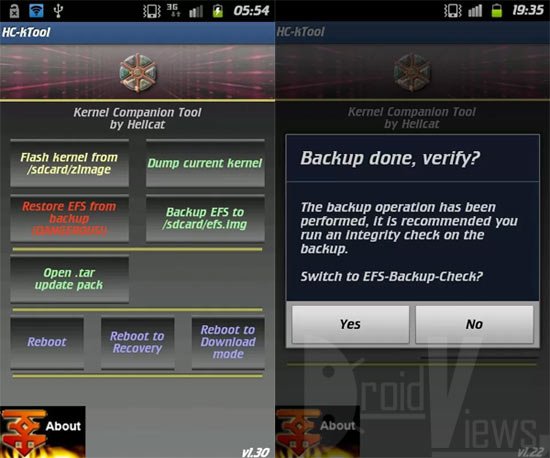
There is  yet another handy utility for backing up the EFS and NV data on your Samsung Galaxy device. It is a free app and called kTool. Since it is a phone-based utility, it is easier to use. It supports almost all Samsung devices except the Qualcomm based LTE devices.
Backup-efs-imei-kTool
Needless to say that the app demands root access on your phone and besides backing up and restoring the sensitive EFS/IMEI/NV data, it can also perform various other tasks like-
  • Boot device into Download and Recovery mode
  • Dump and Flash kernel (and recovery) to /sdcard/zImage
  • Flash recovery from /sdcard/recovery.bin

Note: In case you notice that your phone’s lockscreen is not working properly after backing up the EFS, go to Advanced Settings in the kTool menu and enable  ”Alternate EFS Dump Method”.

Windows App for Exploring Root, Screen Shots, Etc.

Droid Explorer and Android Commander are cool little programs run through Windows that let you batch install/uninstall apps, contacts, and a ton of other features such as screen shots and moving files around etc.


Droid Explorer
Site: Droid Explorer


Features
Multiple Device Support
Copy and auto-apply update.zip
Copy local files to device
Auto detection of connected/disconnected device
APK file icon and extended information
Device command shell window
Reboot device
Reboot device in to recovery mode
Open files for viewing / execution locally with the default file type executable
Drag & Drop file copy from Explorer
Flash Recovery Image
Package Manager (Install & Uninstall)
No need to mount SD card to access files from computer
Access files in other directories besides SD card
Copy files from device to local clipboard
Paste files from local clipboard to device
Open files on local machine
Display open with dialog to specify what to open a file with
Right click APK and Uninstall
Right click APK and Install
Delete files from device
Take a Screen Shot (landscape or portrait)
Plugins can register as a component to open files
Open from within Computer
Should now work with more ROMs as long as they are Rooted and have busybox
Device "Friendly Name" instead of device serial number.
Android Screencast Plugin - Control your android device with your mouse and keyboard
Install/Uninstall APK files right from explorer
Standalone plugin runner (will mainly be used for windows 7 jump lists and the apk installer but can be used to run any plugin.
Better Hero Support
Backup the "Google Experience" applications and creates an update.zip containing the applications


Android Commander
Site: http://androidcommander.cyf.pl


Features
Explore files:
- copy multiple files/dirs between Phone and PC
- copy multiple files/dirs between Phone folders
- delete multiple files/dirs from Phone
- new dir and rename options
- drag&drop multiple files/dirs in to progrm
- drag&drop files/dirs between program tabs
- partitions size info
- bookmarks
Manage apps:
- windows integration
- backup multiple apps to any dir on Phone/PC
- batch/single apps install
- install as private
- update
- batch/single uinstall apps
- uninstall with option to keep data or not
Console:
- type any shell command
- run sh script from PC
and more…
- flashing zip and img files
- options to reboot, reboot to recovery, reboot to bootloader, power off phone
- screenshots (beta)
- tools
…

How to copy CWM Nandroid backup to PC on Android 4.2 Jelly Bean?

There are 2 types of ClockworkMod Nandroid backup format ~ original tar format and new dup format. Tar backup format is good to store another copy at other places like PC or cloud storage. On the other hand, dup format is good for incremental backup for saving disk space. Before Android 4.2 Jelly Bean, older version CWM Nandroid backup is stored at user disk space. But latest version is stored at system disk space where you can’t access it from PC anymore. So how to copy CWM Nandroid backup to PC on Android 4.2 Jelly Bean?

CWM Nandroid backup
How to copy CWM Nandroid backup to PC?
The latest CWM Nandroid backup is stored at /mnt/shell/emulated/clockworkmod/backup folder. In order to copy it to PC, you need to make a copy of the whole backup folder at /sdcard first. Then connect Android device to PC. And copy from there. Then delete the backup at Android device to save disk space. Make sure that you leave at least 1 backup copy there. That’s all.

As for restoration, just copy the backup from PC to Android device. Then copy it to /mnt/shell/emulated/clockworkmod/backup. And restore with CWM then. That’s it.

What I had to do was use droidexplorer, first, install the Android SDK. Connect phone and accept the RSA key on your phone for usb debugging. Then on the droidexplorer use the [INSERT PIC HERE] icon.  /mnt/shell/emulated/clockworkmod/backup.

Monday, September 16, 2013

Change Windows 7 Boot And Resume Screens With Windows 7 Boot Updater

Although we have seen a dozen of Windows 7 boot animation changers in the past to customize Windows 7 boot screen, almost all them require heavy tweaking with a bunch of system DLL files in order to replace Windows 7 default boot screen with customized one. But this time around we have an easy-to-use tool called, Windows 7 Boot Updater, http://www.coderforlife.com/projects/win7boot/ which not only replaces default Windows 7 animation logo with customized image/logo, but allows changing other boot screen elements, such as, screen background, text with its size and color, text position with option to change font and margins and so on. Additionally, it enables you to change Windows 7 resume screen with customized font and backgrounds. You can easily revert back to default Windows 7 boot and resume screens by saving them prior to start customizing their different elements.
The application usage is simple. Before starting out, from File menu, select Save Boot Skin As and then choose the location where you want to save the default Windows 7 boot screen. Now it’s safe to make any changes to Windows 7 boot screen. To begin, from Booting tab, select Static Image or Animation from pull down menu. Once inserted in the main screen, you can choose to change the background, Message color and text. Both static text message editors are present at the bottom. From Messages 1 tab, you can change Starting Windows text and its size, position, and color whereas Message 2 tab lets you do customizations overt Microsoft copyright text.
Windows 7 boot updater

It’s advisable to Play the animation before applying changes. The Fullscreen mode is also available to check Windows 7 boot animation on full screen. Similarly, you can change Windows 7 resume screen. Head over to Resuming tab and start changing different screen elements.
After you’ve done customizing Windows 7 boot and resume screens, click Apply to let it automatically replace Windows 7 boot screen DLLs with customized ones. Now restart Windows to view the newly applied animation.
AT Win 7 Boot

How To Use Titanium Backup For Android [Complete Guide]

Titanium Backup is the ultimate app of choice for every avid Android user with a rooted device. This app is your answer to the most frequently asked question coming from Android users who just rooted their device – “How do I backup my apps when moving to a custom ROM?”. Titanium Backup will not only backup your apps, but their data as well. This means, that by backing up a game, you can back up your progress in the game as well. If you’re really into music, Shazam, for example, can be backed up with all the tags intact. Of course, Titanium Backup does allow you to restore, otherwise, what’s the point? But that’s not all the app has to offer. Titanium Backup actually boasts a variety of feature rich options that most of us do not even bother looking into. For a complete look into one of the best Backup & Restore tools ever made for Android, read on!
We’ll start off with what any novice user would when installing Titanium Backup for the first time. If you’re here, your device is probably already rooted. If not, you might want to check our guide on how to root your Android device.
20110907_123036
Titanium Backup can seem intimidating to the first timers, but the app is actually quite simple to use once you know your way around it, and that’s exactly what we’re here to do. The app is available as an unpaid version and a paid one, that is Titanium Backup Pro, with the latter offering some advanced features that will be discussed later on.
Good, so you have Titanium Backup installed, now how do you backup your apps? Simple, hit theBackup / Restore tab as seen in the screenshot above and you should see a screen somewhat similar to the one below. The apps with their icons visible are the one’s that are already installed on your system, and the ones that are crossed out, are those that have been backed up, but not yet installed.
20110907_12330920110907_123323
But what’s with the creepy smilies, the excalmatory marks and all? Tap the Menu button on your device and hit the Legend tab. You will be shown a screen similar to the one below, listing all the symbols and what they actually mean.
20110907_13091020110907_130929
Right , so you’re in the Backup/Restore menu. To backup any particular app, simply tap it and a sub menu like the one below, will pop up. No need to go all Dee Dee on Dexter here, stick to what you were here for. Hit the Backup button and leave. Please note that you can only have a single backup for every app in the unpaid version of Titanium Backup. Now that you know how to backup an app, here’s how to restore an already backed up app. Simply tap on an app (yes the crossed out ones) and when the sub menu appears, hit the Restore button to restore that app. You will be asked whether to restore the app alone, or the app with its data. Take a pick. In some cases, restoring an app with data may cause the app to become corrupt or force close, especially when you have moved from one ROM to an entirely different ROM. In such cases, try restoring the app alone, without the data.
It is advised that if and when you do make a backup of system apps and settings, do not restore them on a totally different ROM. For example, do not restore system apps backed up in MIUI on a HTC Sense based ROM unless you want a mess on your hands. In all likelihood, the ROM will act up.
20110907_13084020110907_130812
Now that you’ve familiarized yourself with the Backup and Restore option, it should be safe to tell you thatWipe Data removes all the relevant data associated with that app and Un-install does exactly what it says. If you want to remove a particular backup of any app, hit the delete button. This will remove any backup of the app along with its data from your device. Freeze (Only available with Titanium Backup Pro) is a very useful option that lets you freeze up any app that you don’t want deleted, but don’t exactly want it to be running either. This option is handy for use with system apps mostly, that run unannounced and in cases where a certain app drains a lot of battery. If you’re not sure you want to delete them, you can at least stop them from running constantly in the background.
The above Backup and Restore options are all good for a few apps, what about when you have, say, a hundred of them or even more? It would be cruel if we had to go through the tap to backup process for each app one by one. Luckily, for sanity’s sake, the developers included a Batch Backup / Restorefeature. Batch operations are split into 9 categories including Backup, Restore, Backup Verification,Move / Integrate, Freeze / Defrost (Pro version only), Manipulate Data, Un-install and Delete Backups.
20110907_15521220110907_13112520110907_13113420110907_131141
Something different to app backup and restore is the Move / Integrate feature, which allows you to move all your apps to the SD card in batch. Coming back to batch backup and restore, here’s how you can backup all of your apps with just one tap. Hit Menu -> Batch to bring up the batch operations menu, then select RUN with the backup type of your choice. In our case, we chose Backup all user apps and were taken to a screen as shown below (on the left). You will be asked if you want to exclude backing up the apps that are active or kill them to back them up. Select the apps that you want, or just hit Select all, and once the choice is made, hit the Run the batch operation button on the top.

As for batch restore, here’s what will make you want to purchase the Pro version. Hit the Restore type of your choice, in our case we chose Restore missing apps with data. Select the apps and choose whether you want to restore the data as well. Hit the Run the batch operation button and voila! The restoration has started. “Uh oh, it took me to the app installation screen! Is that normal?”. Unfortunately, yes it is. The free version of Titanium Backup is not so hot on restoring your apps for you. You will have to install and then hit the done tab for every app being restored in succession. Frankly, it is a pain! The Pro version lets you restore your apps in a batch as any normal batch operation should, be it 10 apps, 300 or even more.
20110907_13243420110907_132532
So we’re done with the backup and restore operations but Titanium Backup has not yet run out of tricks. Did you know that you could send a list of all the apps currently installed on your PC via Bluetooth or email? Hit the Menu button on your device and tap More to bring up a list of options. Select Send Dataand the screenshots pretty much say the rest.
20110907_16453020110907_16460120110907_164605
You can also schedule when to backup your apps and system data. Even better, you can set multiple schedules. Hit the Schedules tab on the main screen and now you can add new schedules, or simply edit or remove existing ones. This can be pretty handy for times when you haven’t exactly backed up your recent apps and some custom ROM decides to go all Kung Fu on you or if you’re just forgetful. With Schedules, you can rest assure that your apps will remain safe in times like these.
Titanium Backup20110907_13125420110907_131355
There are also a couple of other nifty options if you go into the Preferences menu of Titanium Backup. If you have the Pro version, you could enable the use of Dropbox with Titanium Backup and have a cloud based backup of all your apps. Those paranoid about the safety of their backups can have an encrypted backup, but this feature, again, is for the Pro version only. By default, Titanium Backup saves all your backups in a folder named TitaniumBackup on the root of your SD card. You can change that by going into Backup folder location. If you have ever been through the backed up contents in the TitaniumBackup folder, you would have noticed how the files aren’t exactly the APK’s one would assume they would be. Instead the contents are compressed, but you can change that. Even more, you can change the compression level or choose not to compress the backup at all.
If you have the Pro version, your maximum history of a backup for each app is increased to 5! You can change the default maximum history from 1 to 5 from the Preferences menu.
20110907_13280720110907_132817
20110907_13284020110907_134640
One more handy feature is the Filter. Adding a filter makes finding an app from a list of hundreds very easy. Simply hit the Menu button on your device and tap the Filters button (or simply hit the Search button on your device). That said, try keeping a listed app pressed, and menu similar to the one below on the right will pop up. If the app is already backed up, you can send the backup via email or Bluetooth (Pro version only). Moreover, you can convert the app to a system app or choose to enable multiple profiles for the app (again, Pro version only) and much more.
20110907_13331420110907_133653
Lastly, if you want, you can create an installable zip file of Titanium Backup to be installed via a custom Recovery. Go to More and hit Create “update.zip”… to be taken to a screen similar to he one shown below. Choose the Script type wisely, use the newer Edify script if you’re on ClockworkMod recovery 3+ or the older Amend script for ClockworkMod recovery 2. You can choose whether to install Titanium Backup as a system or user application. Select the name type and hit the Create “update.zip”… button to create the file.
20110907_133105
This concludes our attempt in helping out Android users intimidated by Titanium Backup. Hopefully, we acquainted you with a few features you had not tried out before. If this guide helped you out in any way, or if you feel something has been left out, do let us know. Market links to Titanium Backup and Titanium Backup Pro are given below.

Titanium Backup User’s Guide

This is the Titanium Backup official manual. If this is the first time you are using Titanium Backup, this is the best place to begin. It will enhance your understanding on the application and at the same time tell you why is this application a must have for any Android user. Here is the index of the page:
  1. Preface
  2. Requirements
  3. Installation
  4. First Start
  5. Backup
    1. How to make your first backup
    2. Subsequent backups
    3. Backup Verification
    4. Scheduled Backups
  6. Restore
    1. How to restore your backups after installing a ROM (if you wiped your phone)
    2. Restoring single Applications
    3. Restoring your messages
  7. Manage Applications
  8. Configuration
  9. Tips & Suggestions for using Titanium Backup

Preface

A reliable backup is a must – especially when thoroughly investigating your (new) Android phone, testing a lot of apps, and playing with all those settings – so in case of trouble you can simply revert. Or think of upgrading to a newer/different ROM: Do you want to spend hours afterwards fuzzing around re-instalingl and re-configuring all your applications and settings – if the same result can be achieved by just tapping three times and leaning back?
Most backup applications only cover parts of what’s involved: They either backup (and restore) only your applications, or your SMS, or … And last but not least, only a few can even backup your applications settings. Those which can require root access – and so does Titanium Backup.

2. Requirements

Of course, you need an Android phone which – you might have guessed from the preface – must be “rooted”. That is, you must have “super-user” permissions on your device; except for developer devices, none have this as they are shipped. So this is something you have to take care of yourself. Also required is that you have the “superuser” application installed, which in most cases is done during the “rooting process”.
Titanium Backup is designed to work on any rooted Android device. Android OS versions from 1.5 to 4.0 are tested and supported.

3. Installation

If all requirements are met, you can go to the market and install the application from there – as you do with all other applications.

4. First start

Titanium Backup uses an optimized, built-in version of busybox by default, so you usually don’t need to change anything. If, however, you have problems with root access or with busybox, try hitting the “Problems” button to upgrade your “Superuser” app first. If the issue persists, you may try to enable the “Force use system busybox” option in the preferences as a last resort.
For those who are interested in this (and are too lazy to look it up at Wikipedia :)  ): You can think of busybox as a “system toolbox”. Simply put, it collects a bunch of basic Unix/Linux tools and bundles them into a single binary, taking a minimalistic approach: Offer as much as needed, take up as little space as possible. Titanium Backup makes use of this functionality (why to invent the wheel twice?), and thus needs this executable.
5. Backup

There are multiple ways of how a backup can be created. You can backup a single application, all user applications, all your settings… So let’s go with the most likely scenarios:

i. How to make your first backup

  • Verify that Titanium Backup has started without warning and that your busybox is OK
  • Click the Backup/Restore tab
  • Click Menu (the button), Batch
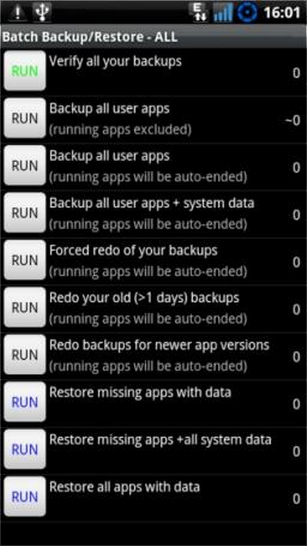
  • Click “Backup all user apps” (if you want just your apps) or “Backup all user apps + system data” if you want everything backed up. This doesn’t seem to always backup SMS and contact history.
  • Let it run, then go back to the main backup tab.
  • Individually backup the system data you want. That is most green-colored items. This will be bookmarks, call log, calendar, launcher, WiFi, etc.
  • Now your backups are in the “TitaniumBackup” directory on your SD card.
Depending on how many applications you have installed, this process will take several minutes. But you don’t need to worry that your screen may switch off and abort the batch backup – Titanium Backup makes sure this doesn’t happen.

ii. Subsequent backups

Batch Scenarios
As you can see on the screen shot, there are a lot of batch jobs available to select from. Once your first backup is done, you probably don’t want to backup everything again – usually you want to only backup the apps that were updated or newly installed. You may have already spotted this option in the list of Batch operations …
Please note, however, that some apps may contain important data (to you) that changes often. You might want to define a label for them (hit “MENU” -> “Filters” and then “Create label”). You can schedule a regular backup for that label.
If you have the PRO/Donate version, you can tell Titanium Backup to keep several successive versions of your backups: hit “MENU” -> “Preferences” -> “Max backup history”.

iii. Backup Verification

So how can you tell whether your backup was successful? The first entry in the batch list runs a verification process. This is only available in the PRO/Donate version.

iv. Scheduled Backups

Scheduled Backups
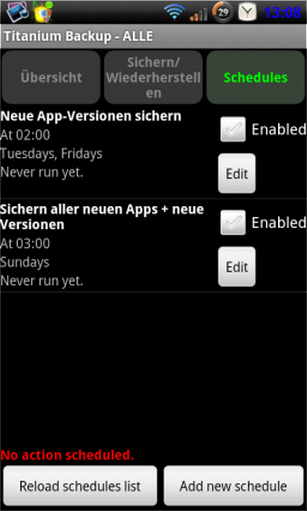
This feature was long waited for: You can create scheduled backups. As the picture to the left suggests, you can setup multiple items here. To serve even the most paranoid, you could e.g. decide for an hourly backup of your settings, plus a daily backup for your (user) applications. Plus saving your call logs and messages all 3 hours, if you like. And whatever else comes to your mind…

6. Restore

i. How to restore your backups after installing a ROM (if you wiped your phone)

  • If you just formatted your SD card, don’t forget to copy the “TitaniumBackup” folder (and possibly your license) back from your PC.
  • Download Titanium Backup from Market
  • If you intend to restore system data (eg: MMS/SMS) from a different phone/ROM, enable the “System data migration” option now.
  • Click the Backup/Restore tab
  • Click Menu (the button), Batch
  • Click “Restore all missing apps + system data
  • Reboot your phone
  • It’s done ! The only thing you may have to adjust is usually your wallpaper/widgets.

ii. Restoring single Applications

To restore a single application and/or its settings, just see “Manage Applications” below.

iii. Restoring your messages

To restore your SMS/MMS, call logs, phone book, and the like: Tap the “Backup/Restore” button, and scroll the list for those data. They usually appear in green letters with square brackets around. Then deal with them as you would do with “single applications”. Again, if you’re restoring them from a different phone/ROM, enable the “System data migration” option.
If they don’t show up in the list, make sure you didn’t filter them out: tap your phones menu button, select “Filter”, and set the filters appropriately.

7. Manage Applications

List of apps
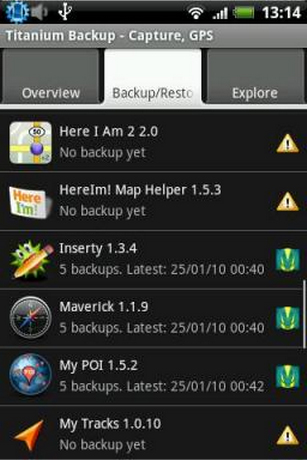
Tapping the “Backup/Restore” button brings you to the application list – or rather the list of available “items”. Here you can see which applications and settings are available on your phone, and what has already been backed up (the symbols to the right tell you the latter – hit your phones menu button and select “Legend” for details on what they mean).
Tapping an application brings up a popup from which you can select actions to be taken with the selected item: You can e.g. run an application, back it up, restore it (or its settings). You also may also decide to un-install the application – even if it is a system app! But with the latter, you should be very careful: Remove the wrong thing, and your phone may start malfunctioning. Which is why you should first try whether it’s safe to remove that system application. This can be done by “freezing” it.
Properties of a backup
Freezing is only available with the PRO/Donate version. It makes the application unavailable to the system without deleting it. If your phone starts with some strange behavior, you can simply “defrost” the frozen application, and everything should be fine again.
Tapping-and-Holding brings up a different set of choices, but again just concerning the tapped (and held) application: You can search for all files belonging to it, view the app in the market, re-create the market link, if it does no longer appear in your market downloads (or do the opposite, detach it from the market), or move it between internal and SD storage (with Froyo) – even if the app does not officially support this.

8. Configuration

Why do I bring up this as almost the last item? Because the defaults are usually fine, and I guessed you were more eager for a fast start ;)
You will find the settings by tapping your phones menu button, and then select “Preferences”. Here you can configure the following things:
  • Auto-sync TB settings: This should be switched ON. It ensures that Titanium Backup automatically saves its own settings to your SD card. After a complete restore, you probably want those back as well.
  • Backup Folder name: Where on the SD card your backups should be stored. By default, this is “TitaniumBackup” in your SD cards root directory. If you have a Samsung you can use “sd/TitaniumBackup” to store your backups on the external SD card.
  • Normal Apps (apk): Include your applications *.apk files with the backup
  • Protected Apps (apk): These are the apps on your system partition. As that partition is read-only, they cannot be restored.
  • Market Link: Backup the market links together with your apps?
  • Max backup history: How many different versions to keep for your apps. Useful if some app gets broken by an update – so you can revert to a previous copy.
  • Compression: What it says, how to compress your backups.
  • Force to same location: Concerns Apps2SD (Froyo only). Whether an app should be restored exactly to where it was backed up from (SD/internal).
  • Migrate system data: Use this before restoring system data from a different (incompatible) ROM, or even different phone model. Although it usually works well for the most common data (eg: SMS/MMS) from Android 1.5 to 2.2, this is a best effort approach and is not guaranteed to work from any ROM to any ROM.
  • Remove Market Link: Exactly.
  • Chuck Norris mode: Enable the feature to remove protected “bloatware” apps from your ROM (using a roundhouse kick :)  )
  • App processing mode: If Titanium Backup continually hangs while installing or freezing apps, you might try to switch this.
  • Min days: For the batch-mode backup of “apps older than…”

9. Tips & Suggestions for using Titanium Backup

  • When you start Titanium Backup on a new ROM and you have any problems with root access, try clicking the “Problems?” button first.
  • Don’t forget to verify your backups (Click MENU – Batch) to ensure that your backups are OK.
  • You need to reboot after restoring system items (eg: Contacts, SMS, Settings, etc) for the changes to take effect. If you backup/restore across very different ROMs, we advise to be cautious and only include the system items you really need to preserve. Try enabling the “System data migration” option before restoring, too.
  • You can easily create a custom apps list by creating a Label in Apps Organizer, then going back to Titanium Backup, clicking “MENU” and then “Filters” and finally, selecting the Label you want. Your apps list will then be filtered just the way you want :D
  • If you backup the same app several times, Titanium Backup will save SD card space by storing each apk version only once.
  • After restoring your apps, you can run the Market Doctor to verify their Market links. If Market Doctor reports everything as okay, yet your apps are still not listed in “My Downloads”, try to search for them in the Market. If they show as “Installed”, it confirms that the links are okay, but your Market needs a refresh: just install any app from the Market, and the “My Downloads” section will be refreshed !
  • If you want to remove a system app, first you can try to freeze it and see if everything still works fine. Once you’ve gained more confidence that you don’t need it, just go ahead and un-install that system app.
  • If you are using Dropbox / Box.net / Google Drive and want to sync the backups somewhere other than in a folder at the root of your account use the format <Directory1>/<Directory2> in the “Dropbox / Box.net / Google Drive target location” setting. For example typing: “Android/TitaniumBackup” syncs your backups to a folder named TitaniumBackup underneath a folder called Android. Dropbox / Box.net / Google Drive sync is only available with the PRO/Donate version.